Module: Coordinate Displacement
Displaces each node by the value of a vector component at this node, animates such displacement
| input port | type | description | data acceptors |
|---|---|---|---|
| inField | VNField |
| output port | type | description | data schemas |
|---|---|---|---|
| outRegularField | VNRegularField | Regular Field |
|
| outIrregularField | VNIrregularField | Irregular Field |
|
| outPointField | VNPointField | Point Field |
|
| outObj | VNGeometryObject | complete animated geometry |
Description
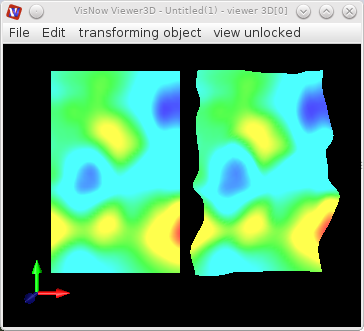
The module displaces each mesh node of the input field by value and direction of a vector component at this node and animates the displacement.
Input field
The input field contains at least one vector component of veclen=3 or veclen=2.
Output field
The output field is irregular.
Computation parameters
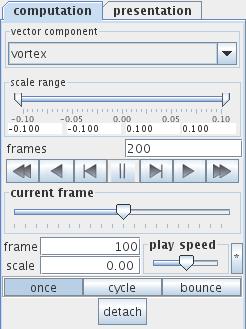
The vector component drop down list defines the vector component which is used to calculate the displacement. By default, the first component of the list is used.
The scale range slider below the drop down list defines the range of displacement. Alternatively the range can be adjusted using the text input fields below the slider.
The frames text input field contains the number of frames.
A set of buttons allows to navigate from frame to frame:
- reset: sets animation to the first frame,
- run back: displays a sequence of frames backwards,
- step back: takes one step to the previous frame,
- pause,
- step: advances by one frame,
- run: displays forward, according to the run option mode,
- reset back: sets animation to the last frame.
The current frame slider and the frame and scale text input fields show the current frame and the scale of the current displacement step. The user can choose a frame number by dragging the slider or entering a value into the frame text input field. Entering a value into the scale text input field the module chooses the frame with a scale near to this value.
The play speed slider defines the animation speed. The button on the right hand side of the slider resets the speed to default.
There are three run options for running the animation:
- once: animation is performed once
- cycle: animation is repeated
- bounce: animation is performed out and back
Press the detach button to detach/attach the navigation panel for the animation.
Presentation parameters
Presentation tab contents are described in the common interfaces section unter the Presentation Panel entry.
Example
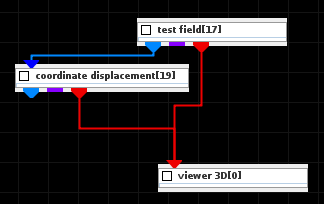
Choose the test field module from test objects library and coordinate displacement module from 3D field mappers library and connect them.
In the test field module choose 2D and the variables Gaussians and Gaussians_swirl. In the Presentation/transform tab use translate x in order to translate the geometry object in the Viewer 3D window.
In the coordinate displacement computation UI press the bounce button and start animation.